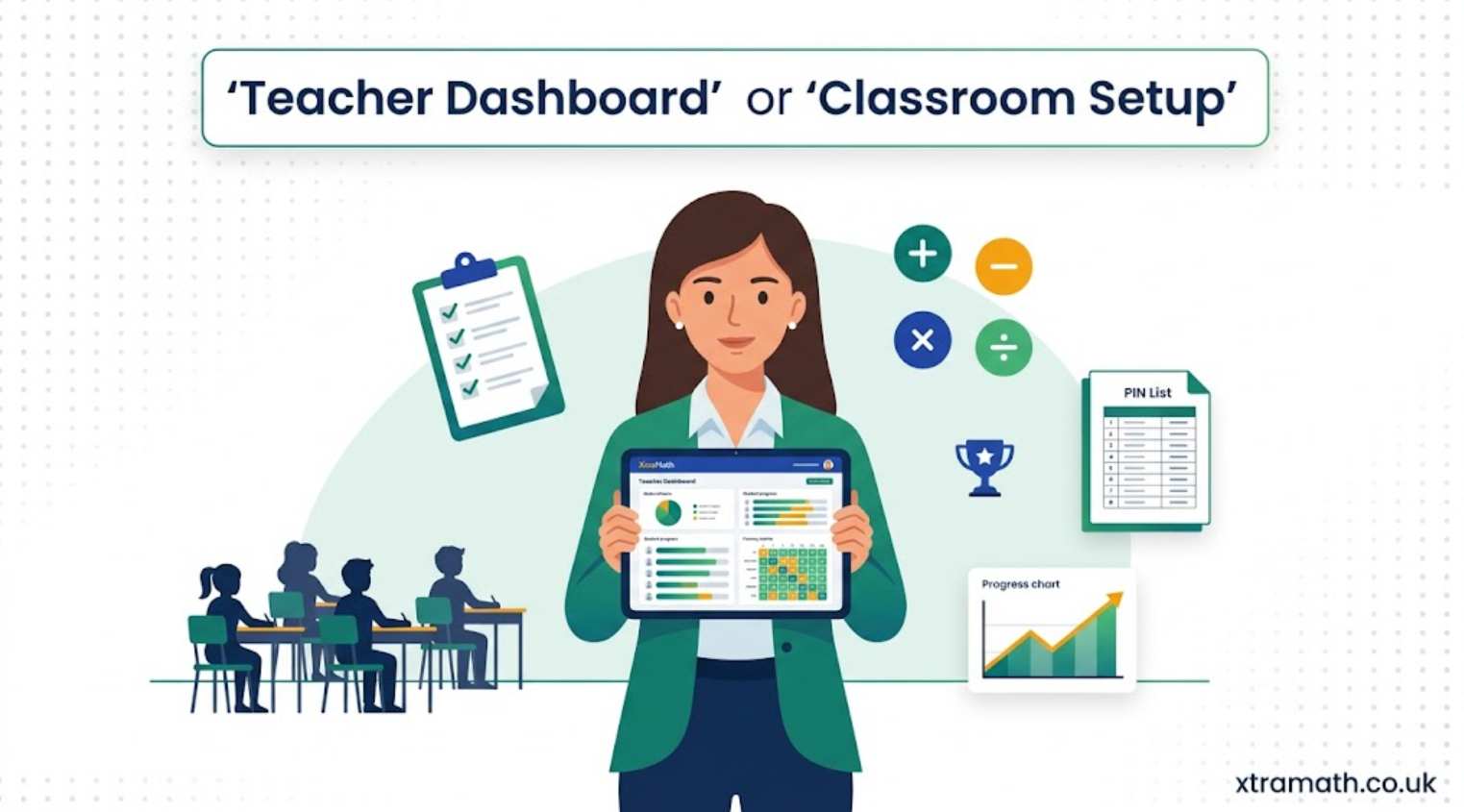
XtraMath Teacher Guide 2026: Complete Setup, Class Management & Best Practices
For thousands of teachers across the UK and worldwide, XtraMath has become a quiet classroom hero — a free, no-fuss tool that builds students’ math fact fluency in just 10 minutes a day. But to get the full benefit from the platform, teachers need to know more than just how to log in. From creating classes and managing student PINs to interpreting fluency reports and using rostering integrations like Clever and ClassLink, the teacher side of XtraMath has real depth.
This complete XtraMath teacher guide walks you through everything you need to know — whether you are setting up your very first class or refining an existing classroom routine. By the end, you will know exactly how to maximise XtraMath’s potential for your students, save time on assessment, and turn daily practice into measurable growth. If you are entirely new to the platform, you may want to first read our complete XtraMath guide for a broader overview.
What Makes XtraMath Different for Teachers?
Most edtech tools demand a lot of teacher time upfront — lesson plans to adapt, content to curate, settings to tweak. XtraMath takes the opposite approach. Once you have set up a class, the program essentially runs itself. The adaptive engine handles which facts each student practises, the timing of sessions, and how mastery is assessed. Your role shifts from instructor to facilitator: you set the direction, check in on progress, and intervene when data shows a student needs extra support.
This is why XtraMath has remained a classroom staple for nearly two decades. It does one thing exceptionally well — building math fact fluency — and it does it without distracting bells and whistles. For teachers managing 25 or 30 students, that focused simplicity is invaluable.
Step 1: Creating Your XtraMath Teacher Account
Setting up a teacher account is free and takes under two minutes. There is no credit card required, no trial period to navigate, and no upsell barrier blocking the core features.
How to Sign Up as a Teacher
- Go to xtramath.org in your browser.
- Click “Create Free Account” in the top right corner.
- Select “Teacher” as your account type.
- Enter your school email address. (Using your school email is recommended because it keeps work and personal accounts separate and helps with district-wide premium licenses later.)
- Create a secure password — at least 6 characters, but stronger is better.
- Confirm your email by clicking the verification link XtraMath sends you.
You can also sign up with Google SSO if your school uses Google Workspace. This skips the password creation step. Once you have an account, you can sign in any time from the XtraMath login page — see our complete login guide for details on every sign-in method.
Dual Parent/Teacher Accounts
If you are a teacher who also wants to use XtraMath at home with your own children, you can create a dual account at signup by selecting both roles. Dual accounts have a special “My kids” section that keeps your personal children separate from your classroom students. You can also convert an existing account to a dual one later from the Accounts settings page.
Step 2: Setting Up Your First Class
Once your teacher account is verified, the next step is creating a class and adding students. There are three main ways to do this, depending on your school’s setup.
Method 1: Adding Students Manually (Simplest for Most Teachers)
For a single class without a rostering integration, manual entry is the fastest method.
- Sign into your teacher account and you will land on the dashboard.
- Click “Create New Class” and give it a name (e.g., “Year 4 — Mrs Smith”).
- On the class report page, click “Add Students” on the left side.
- Type the first student’s name and select their grade level.
- Accept the randomly generated 4-digit PIN, or set a custom one (must be unique within the class).
- Press Enter or click the (+) button to move to the next student.
- When all students are added, click “Done” to return to the class report.
For most teachers, this takes 5–10 minutes for an entire class. The auto-generated PINs are fine to keep — they are random by design and protect student privacy.
Method 2: Clever Integration
If your school uses Clever, you can roster your class automatically. Here’s how:
- Log into your Clever account.
- Go to Resources and search for “XtraMath (Single Sign-On)” in the Clever Library.
- Install XtraMath for the class you want to roster.
- Open XtraMath from your Clever dashboard — your class will sync automatically.
Note: XtraMath is a Clever Library app, not a Secure Sync app. This means each teacher installs it individually for their classes — district administrators cannot push it out automatically.
Method 3: ClassLink Integration
ClassLink integration is set up at the district or school level. Once your administrator has enabled it, your roster will sync nightly. Any changes (new students, transfers, name corrections) in ClassLink will appear in XtraMath the next day.
Step 3: Choosing the Right Program for Your Students
Every student in XtraMath is assigned a program — the sequence of operations they will practise. By default, programs are based on grade level, but you can customise them based on each student’s needs.
The Four Core Operations
- Addition — ideal for Year 1–2 students just building number sense.
- Subtraction — typically follows addition mastery in Year 2–3.
- Multiplication — central focus for Year 3–4 students.
- Division — final core operation, usually mastered by Year 5.
Students work on one operation at a time until they reach mastery, then move on to the next. This sequenced approach prevents cognitive overload and builds confidence step by step.
Program Variations
For each operation, XtraMath offers three difficulty tiers:
- Regular — single-digit problems and their inverses (e.g., 7 + 4, 11 − 4). This is the default.
- Beginning — for younger students. Addition sums to 10 or less; subtraction inverses match.
- Expanded — more challenging fact sets for advanced learners.
You can also assign Assessment-only programs, which evaluate a student’s current fluency without active teaching — useful at the start of the year to set baselines.
How to Change a Student’s Program
- Sign into your teacher account.
- Open the class report and find the student.
- Click their name to open their individual student report.
- Click “Change program” on the left side.
- Select the new operation or variation, then save.
You can also restart a program if a student needs to refresh their fluency on a previously mastered operation — useful after long school breaks.
Step 4: Distributing Access to Your Students
Once your class is set up, your students need to know how to sign in. There are several efficient methods to handle this.
Printing the PIN List
- Open your class report.
- On the left side, click “Print PIN list”.
- A printable PDF is generated with each student’s name and PIN.
- Cut and distribute, or display securely.
For privacy, avoid posting the PIN list publicly. Each PIN protects an individual student’s account.
Sending Family Flyers
Family flyers are personalised PDFs that give each student’s parents the credentials needed to access XtraMath at home. They also let parents create a linked family account so they can track progress independently.
- From the class report, click “Send home flyers” or similar option.
- Download the customised flyers (one per student).
- Print and distribute to parents — ensure each flyer goes to the correct family.
Family flyers are one of the most underused features in XtraMath. They dramatically increase practice frequency by enabling home reinforcement of classroom learning.
Setting Up Classroom Sign-In Pages
If your students share devices (Chromebooks, iPads, or a computer lab), use the Classroom Sign In page so students can simply click their name and enter a PIN.
- Go to the Classroom Sign In page from your dashboard.
- Enter your teacher email and password to authorise the device.
- For multiple devices, click “Remember my network” to sync across them.
- Click “Forget my network” once setup is complete to lock it.
For full details on every sign-in method including troubleshooting common errors, refer to our complete XtraMath login guide.
Step 5: Understanding XtraMath Reports
The reporting suite is where XtraMath earns its keep for teachers. There are four core report types, each serving a different purpose.
1. Class Report
The class report is your daily command centre. It shows:
- Each student’s name and current program
- Their fluency score for the current operation
- Daily activity icons (green/yellow/red) showing how recent practice went
- Mastery progress as a percentage or fluency level
Use the class report to scan for patterns. Many yellow or red icons indicate a student is struggling and may need direct support. Consistently green icons mean a student is thriving and may be ready for the next operation.
2. Student Report (Individual)
Click any student’s name to open their detailed report. Here you’ll find:
- A fluency matrix showing every fact and the student’s mastery status
- A calendar view of their practice activity
- Response time data — how quickly they recall each fact
- Earned trophies and milestones
- Settings to change their program, restart, or rename
The fluency matrix is particularly powerful. You can instantly see which specific facts a student struggles with (often the 7s, 8s, and 9s in multiplication), then provide targeted intervention.
3. Date Report
The date report shows class-wide activity for a specific day or range of days. It’s useful for:
- Verifying that students completed practice during a specific lesson
- Comparing engagement before and after a particular intervention
- Identifying days when participation dipped (e.g., right before holidays)
4. Fluency Score and Mastery Reports
Each student’s fluency score is a single number summarising their overall recall ability for the current operation. Higher scores indicate stronger automaticity. These scores are excellent for parent communication and end-of-term reports because they translate complex performance data into something easy to understand.
Exporting Data
If your school requires data for tracking or external reporting:
- Open a student or class report.
- Click “Export data” on the left side.
- Choose whether to export a single student or all students.
- Download as a .CSV file for use in spreadsheets or your school’s data system.
Step 6: Best Practices for Maximising XtraMath in the Classroom
Setting up the platform is one thing — using it well is another. Here are practices proven to drive the best student outcomes.
Make It a Daily Habit
The single biggest predictor of XtraMath success is consistency. Schedule a fixed 10-minute slot every school day — first thing in the morning, after lunch, or as a maths warm-up. Students who practise 4–5 times per week show dramatically faster fluency gains than those who practise sporadically.
Celebrate Small Wins Visibly
Students earn certificates when they complete an operation and trophies as they hit milestones. Print these out and display them on a classroom wall. The visible recognition turns silent progress into shared celebration.
Use Incentives Sparingly but Meaningfully
Some teachers offer simple rewards like “lunch with the teacher” or “extra reading time” when a student masters an operation. Small, predictable incentives work better than big surprise ones because they reinforce the daily habit rather than the rare big moment.
Address the Timer with Care
The 10-second timer per problem can stress anxious students. If you notice a child becoming visibly tense during sessions:
- Reassure them that speed comes with practice — accuracy first matters more.
- Try assigning the Beginning variation of their operation to ease pressure.
- Sit with them during the first few sessions until they relax into the rhythm.
Communicate Progress with Parents
Family flyers and weekly progress emails (which XtraMath sends automatically) keep parents informed. Reinforce this by mentioning XtraMath in parent-teacher conferences and including fluency scores in end-of-term reports.
Use Data, Don’t Just Collect It
Reports are only useful if you act on them. Check your class report at least once a week. If multiple students show red icons or stalled progress, consider:
- Switching them to an easier variation
- Pairing them with a stronger peer for a few sessions
- Providing 5 minutes of small-group instruction on the specific facts they’re missing
XtraMath Premium for Teachers: Is It Worth It?
The free version of XtraMath is genuinely useful on its own — that’s part of why it’s so widely respected. However, XtraMath Premium offers extras that may be valuable depending on your needs.
What Premium Adds for Teachers
- Enhanced reports with deeper analytics and comparison tools
- Full program customisation (Free accounts have some limitations — for example, selecting Multiplication automatically includes Addition and Subtraction)
- Out-of-school access for students whose families don’t have separate accounts
- Family reports sent automatically to parents
- Printable resources including certificates, fluency matrices, and classroom progress charts
- Priority support from the XtraMath team
Who Should Consider Premium
Premium becomes especially valuable for:
- Schools or districts managing many classes (district-wide licenses available)
- Teachers who want detailed analytics for differentiated instruction
- Classrooms with significant home practice expectations
- Special education contexts where customised programs are essential
For most individual teachers with one or two classes, the free version is sufficient. Premium is worth a conversation with your school administrator if you’d like district-level features.
New XtraMath Features for 2026
XtraMath introduced several major updates at the start of 2026 that teachers should know about.
Redesigned Program Settings Panel
The Program Settings have been completely redesigned to save time. You can now fully customise a student’s program from a streamlined panel on the left side of your teacher dashboard — no more clicking through multiple screens to assign learning paths.
Awakening Integration (Game-Based Supplement)
Through a partnership with Legends of Learning, teachers can now extend daily XtraMath practice with Awakening — a research-backed, game-based fluency reinforcement experience. Students can only access Awakening after completing their daily XtraMath session, ensuring learning always comes first. A one-click button on your dashboard takes you straight to the Awakening Teacher Portal.
Streamlined Free Account Operations
On Free accounts, operations are now structured to follow the established fluency progression. Selecting Multiplication automatically includes Addition and Subtraction, and previous operations are highlighted as students move forward. This ensures students build fluency in the correct sequence, even without Premium customisation.
Common Teacher Challenges and How to Solve Them
“My students aren’t making progress.”
First, check the data. Are they actually completing sessions? Look at the class report calendar. If activity is consistent but fluency is plateauing, consider:
- Reviewing which specific facts they’re missing in the fluency matrix
- Switching to a different variation (Beginning instead of Regular)
- Providing direct teaching on those facts before returning to XtraMath
“A student can’t sign in.”
This is one of the most common issues. The fixes:
- “Name not found” — verify the student’s name spelling matches XtraMath exactly.
- “PIN doesn’t match” — view the student report to confirm the correct PIN.
- Wrong account — for Google sign-in issues, disconnect Google and delete the duplicate teacher account.
Full troubleshooting steps are in our XtraMath login guide.
“How do I handle a new student mid-year?”
If the student is brand new to XtraMath, simply add them to your class as you would any other student. If they were previously enrolled in another teacher’s class, transfer them using your email address — XtraMath will merge their old data into your class automatically.
“Should I worry about screen time?”
XtraMath sessions are intentionally short (10 minutes) and focused. The platform contains no advertisements, no social features, and no addictive game elements. For most students, daily XtraMath represents a tiny, productive portion of overall screen time.
Frequently Asked Questions for Teachers
Is XtraMath really free for teachers?
Yes. The core program is completely free with no trial period or hidden charges. Premium plans add extra features but are not required for basic classroom use.
How many students can I add to a class?
There is no hard limit. Teachers regularly manage classes of 30+ students without issue.
Can I run multiple classes in one account?
Yes. Teacher accounts support multiple classes — useful for departmentalised teachers or those managing multiple year groups.
What devices does XtraMath work on?
Any internet-connected device works — desktops, laptops, Chromebooks, iPads, Android tablets, and smartphones. Dedicated apps are available on iOS and Android for the best mobile experience.
How long does each session take?
About 10 minutes per student per day. Some teachers schedule it as a daily warm-up, others as a maths centre rotation.
Can I see exactly which facts a student struggles with?
Yes — the fluency matrix on each student report shows every fact and their mastery status. This is incredibly useful for targeted intervention.
What happens at the end of the school year?
Classes have end dates, after which they archive automatically. The next school year, simply create new classes and send home family flyers — student data merges automatically when parents follow the flyer instructions.
Final Thoughts: Becoming an XtraMath Power User
The teachers who get the most from XtraMath aren’t the ones who tweak the most settings — they’re the ones who commit to the daily routine and use the data to guide instruction. Set up your class properly, distribute access through flyers and PIN lists, schedule a consistent 10 minutes a day, and check your class report weekly. That’s the formula.
XtraMath isn’t designed to teach new mathematical concepts. It’s designed to build the automatic recall that frees your students’ minds to tackle bigger problems — fractions, decimals, algebra, and beyond. When math facts become effortless, everything else gets easier. As a teacher, you’re not just running a practice tool. You’re laying the foundation for years of mathematical confidence.
If you want to deepen your understanding of why this matters, read our guide on why math fact fluency matters. For new teachers just getting started, our complete XtraMath guide covers everything from the platform’s history to its underlying methodology. And whenever a student has trouble accessing the platform, the XtraMath login guide has step-by-step solutions for every common error.
Welcome to a tool that, used consistently, can transform how your students experience maths — one short, focused session at a time.