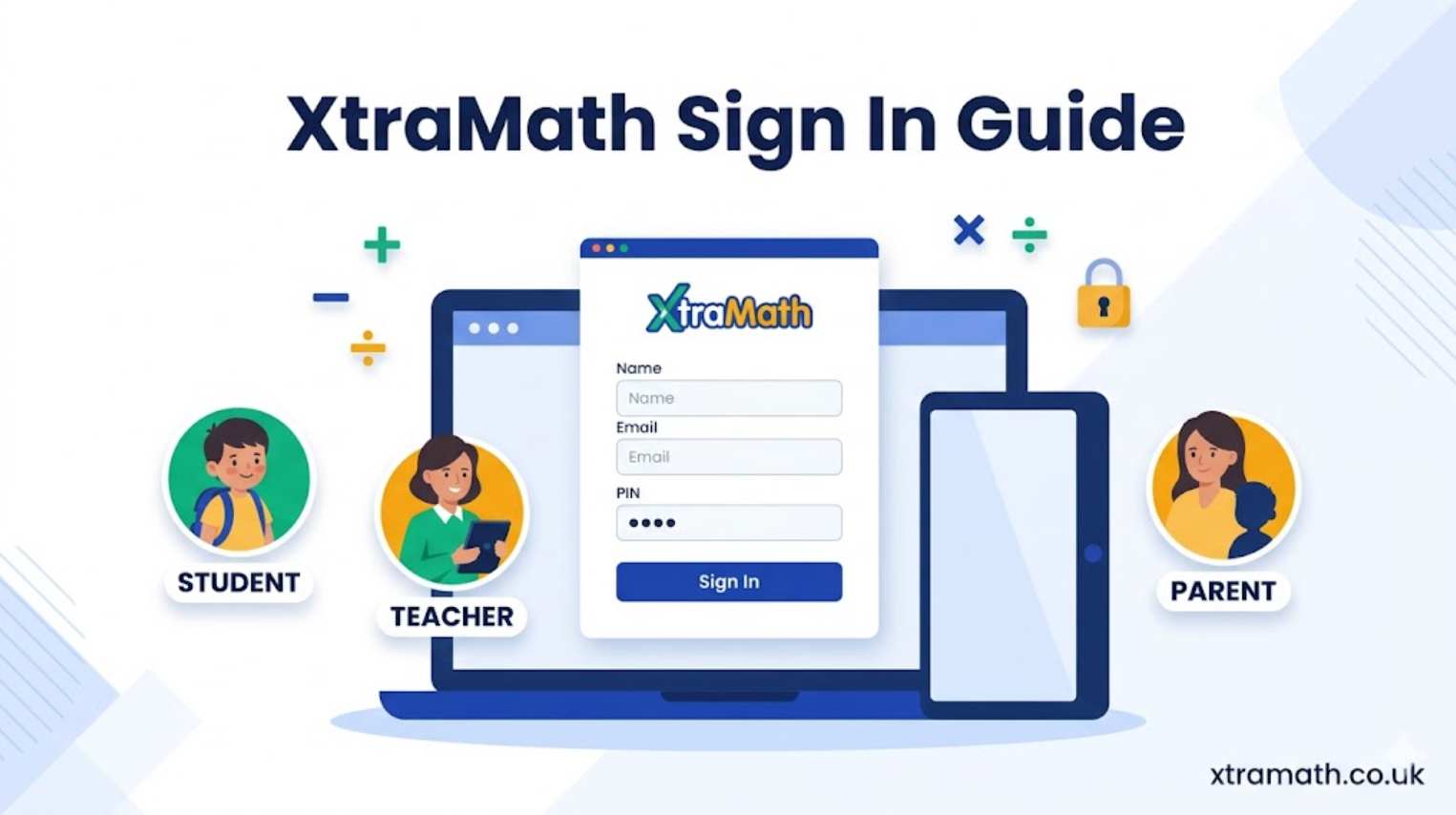
XtraMath Sign In: Complete Login Guide for Students, Teachers, and Parents (2026)
Signing into XtraMath is the first step toward building strong math fact fluency — but for first-time users, the process can feel a little confusing. There are different sign-in pages for students, teachers, and parents, plus several login methods like email, Google, Clever, and ClassLink. If you have ever found yourself wondering “why won’t my XtraMath sign in work?” or “how do I help my child log in at home?”, you are not alone.
This complete XtraMath sign-in guide walks you through every login method, every user type, and every common error — step by step. By the end, you will know exactly how to access XtraMath from any device, fix typical issues, and keep your account secure. For a full overview of the platform itself, you can also read our complete XtraMath guide before diving in.
What Is XtraMath and Why Does the Sign-In Process Matter?
XtraMath is a free, nonprofit online program that helps students build automatic recall of basic math facts — addition, subtraction, multiplication, and division. The program is widely used in classrooms across the UK, the US, and dozens of other countries. Because it serves three different user groups (students, teachers, and parents), XtraMath uses separate sign-in pages and credentials for each.
Understanding which sign-in page applies to you is the most important first step. Students cannot log in through the teacher portal, and parents have their own family dashboard separate from teacher accounts. Choosing the wrong page is one of the most common reasons sign-in fails, so we will break each path down in detail below.
XtraMath Sign In: The Three Account Types Explained
Before logging in, it helps to understand what each account does and what credentials you need.
Student Accounts
Student accounts are created by a teacher or parent, not by the student themselves. Each student account includes a name, a grade level, and a randomly assigned 4-digit PIN. To sign in, the student needs three things:
- Their name (entered exactly as it appears in XtraMath)
- The email address of the teacher or parent who set up the account
- Their unique 4-digit PIN
Teacher Accounts
Teacher accounts manage entire classes. Teachers can create student accounts in bulk, view class-wide progress reports, assign different programs (addition, subtraction, etc.), and access classroom sign-in pages for shared devices. Teachers sign in using a school email and password, or via Google SSO if their school uses Google Workspace.
Parent / Family Accounts
Parent accounts (also called family accounts) let parents add their children, monitor progress, and provide practice at home. Parents use their own personal email and password to sign in. If you have set up a family account, your child can sign in using your email address as their identifier, along with their name and PIN.
How to Sign In to XtraMath as a Student: Step-by-Step
This is the most common sign-in scenario, since students log in every school day. Whether your child is using a school computer, home laptop, or tablet, the process is similar.
Step 1: Go to the Student Sign In Page
Open your web browser and visit xtramath.org. On the homepage, look for the “Student Sign In” option. Click it. Make sure you are not on the Teacher or Parent sign-in page by mistake — this is the most common reason for early errors.
Step 2: Enter the Teacher or Parent Email
The first field asks for an email address. This is not the student’s email — XtraMath does not collect student emails. Instead, enter:
- The teacher’s email if your child uses XtraMath at school
- The parent’s email if your child uses a family account at home
If your child uses XtraMath both at school and at home, either email will usually work — but using the one tied to the most recent session keeps things clean.
Step 3: Type the Student’s Name
Enter the student’s name exactly as it is listed in XtraMath. This often means just the first name, but sometimes a last initial is included (for example, “Alex T.” if there are multiple Alexes in the class). If the system says “name not found,” check spelling and capitalization carefully.
Step 4: Enter the 4-Digit PIN
Type the student’s PIN. PINs are assigned randomly when the account is created. If you don’t know the PIN:
- Parents: Sign into your parent account and view your child’s student report — the PIN is shown there.
- Teachers: Sign into your teacher account and view the class report. You can print a full PIN list from the left side of the report.
- Students: Ask your parent or teacher — they have access to your PIN.
Step 5: Click “Sign In” and Start Practice
Once your credentials are accepted, the daily session begins. The session takes around 10 minutes and includes adaptive math problems tailored to your current fluency level. If you are using your own private device, you can tick the “Remember me” box to skip these steps next time.
How to Sign In to XtraMath as a Teacher
Teacher sign-in is more straightforward than student sign-in because it uses a standard email-and-password format. Teachers have access to all the powerful classroom management features that make XtraMath such a popular tool in schools.
Step 1: Visit the Teacher Sign In Page
Go to xtramath.org and click “Teacher Sign In” at the top of the page. You can also click “Create Free Account” if you are a new teacher who has not signed up yet.
Step 2: Enter Your School Email and Password
Type the email address you used when registering. Most teachers use their school email — for example, name@schooldistrict.edu or name@schoolname.co.uk. Enter your password carefully (it’s case-sensitive).
Step 3: Use Google SSO (Optional)
If your school uses Google Workspace, you can click “Sign in with Google” instead. This skips the password step and uses your Google credentials directly. It’s especially convenient if you are already signed into Google on your device.
Step 4: Access Your Teacher Dashboard
Once signed in, you will land on your teacher dashboard, where you can:
- Create or edit classes
- Add students individually or in bulk
- Assign programs (addition, subtraction, multiplication, division, or custom)
- View detailed progress reports for each student and the whole class
- Set up classroom sign-in pages for shared devices
For a complete walkthrough of the teacher dashboard and class setup, see our XtraMath teacher setup guide.
How to Sign In to XtraMath as a Parent
Parent accounts give you a complete view of your child’s progress at home. Whether your child is enrolled in school-based XtraMath or you are using it for homeschool practice, the parent sign-in is the same.
Step 1: Open the Parent Sign In Page
Visit xtramath.org and click “Family Sign In”. If you have never used XtraMath before, click “Create Free Account” and follow the prompts to set up a family account first.
Step 2: Enter Your Email and Password
Use the email address and password you registered with. Tick “Remember me” if you are on your own device for faster sign-in next time.
Step 3: Manage Your Children’s Accounts
Once inside your parent dashboard, you can:
- Add or remove children from your family account
- View weekly progress reports for each child
- See the PIN for each child (useful when they sign in)
- Switch a child’s practice program if needed
- Receive automatic weekly progress emails
Step 4: Help Your Child Sign In
Once your family account is set up, your child can sign in on the Student Sign In page using your email address, their name, and their PIN. If you are also using XtraMath as a homeschooler, our XtraMath homeschool guide covers daily scheduling and progress tracking in more detail.
XtraMath Classroom Sign In: For Schools Using Shared Devices
Most classrooms in the UK and US use shared devices — Chromebooks, iPads, or desktop computers passed between students. XtraMath supports this with a special Classroom Sign In mode that makes switching students fast and easy.
How Classroom Sign In Works
Instead of every student typing the teacher’s email and their full credentials, the classroom sign-in page displays a list of student names. A student simply clicks their name, enters their 4-digit PIN, and starts practising. When they finish, the system prompts the next student to sign in on the same device.
Setting Up Classroom Sign In (For Teachers)
- Sign into your teacher account from the classroom device.
- Go to the Classroom Sign In page from your dashboard.
- If your class isn’t already remembered, click “Other…” and enter your email and password.
- If you are setting up multiple devices, tick “Remember my network” so the class list syncs across them.
- Once all devices are configured, click “Forget my network” to lock the setup.
Sign In with Google, Clever, or ClassLink
XtraMath integrates with several Single Sign-On (SSO) platforms that make logging in faster for students already signed into school systems.
Google Sign In
Students with a Google account (Gmail or Google Workspace for Education) can click the Google button on the Student Sign In page. This is especially useful for Chromebook users. Note: XtraMath does not currently integrate with Google Classroom rosters, so each Google account must be linked individually.
Clever Sign In
If your school district uses Clever, XtraMath can be added through the Clever Library as a rostered app. Students sign in via the XtraMath tile in their Clever Portal — no separate credentials needed. This works best for 1:1 device setups.
ClassLink Sign In
Schools using ClassLink can similarly link XtraMath to their portal. Students sign in via ClassLink directly, or by clicking the ClassLink button on the XtraMath Student Sign In page.
Common XtraMath Sign-In Errors and How to Fix Them
Even with simple credentials, things sometimes go wrong. Here are the most common XtraMath sign-in errors and how to resolve them quickly.
“Name Not Found” Error
Cause: The student’s name doesn’t match the spelling in XtraMath.
Fix: Check capitalization, spacing, and whether a last initial was included. For example, if the teacher created the account as “Sarah M.” but the student types just “Sarah,” the system won’t find a match. Ask the teacher or parent for the exact spelling.
“PIN Does Not Match” Error
Cause: Wrong PIN entered, or the PIN was changed recently.
Fix: Parents can find the correct PIN by signing into their parent account and viewing the student report. Teachers can print a class PIN list from the class report page. If you are a parent without access to your child’s school account, contact their teacher directly.
“Email Address Not Found” Error
Cause: Typo in the email, or the wrong email was used.
Fix: Double-check spelling. Also verify that you are entering the email of a teacher or parent connected to the student’s account. If a child uses XtraMath at school but you enter your home email, the system may not find a link.
“Passwords Must Be at Least 6 Characters” Message
Cause: A student is accidentally on the Teacher or Parent Sign In page.
Fix: Students don’t use passwords — they use PINs. Make sure the student is on the Student Sign In page, not the teacher or parent one.
“You’re Done” Message
Cause: The student has finished all assigned activities for the day or has completed their entire program.
Fix: If the program is fully complete, the teacher or parent can assign a new operation (for example, moving from addition to multiplication) from the dashboard.
Student Ends Up in a Teacher Account
Cause: The student’s Google email is linked to an unwanted teacher account.
Fix: Disconnect the Google account from the unwanted teacher profile, then delete that teacher profile from the dashboard. Without the final deletion, the account may relink the next time the student signs in.
Classroom Sign-In Page Disappeared
Cause: The browser’s LocalStorage was cleared, often by overnight school IT routines.
Fix: The teacher needs to re-set up the Classroom Sign In page from that device. To avoid this in future, use a different sign-in method on devices where data is cleared regularly.
How to Reset Your XtraMath Password
Forgot your password? Teachers and parents can reset it easily.
- Go to the Teacher Sign In or Family Sign In page.
- Click “Forgot your password?” below the password field.
- Enter the email address linked to your account.
- Check your inbox for a password reset email (also check spam/junk).
- Click the link in the email and set a new password — make it at least 6 characters.
Students don’t have passwords — their PINs are managed by their teacher or parent and can be regenerated from the student report page.
Security Tips for Safe XtraMath Sign In
XtraMath is built with strong privacy protections (COPPA, FERPA, and GDPR compliant), but good habits still matter. Here is how to keep your account secure.
Use Strong Passwords
For teacher and parent accounts, use a password that is at least 8 characters long and combines letters, numbers, and symbols. Avoid using the same password you use for other websites.
Don’t Tick “Remember Me” on Shared Devices
The Remember Me option is great for personal devices but a security risk on shared or public ones. Anyone using that device after you could access the account without entering credentials.
Keep PINs Private
While PINs are simple, they are also the only thing protecting a student’s account. Teachers should distribute PIN lists carefully and re-issue PINs if a list is ever lost or shared inappropriately.
Sign Out When Done
Especially on classroom devices, always sign out fully at the end of the day. This prevents the next user from continuing your session by accident.
XtraMath Sign In on Mobile: iOS and Android Apps
XtraMath has dedicated mobile apps for both iPhone/iPad (iOS) and Android devices. The sign-in process on mobile mirrors the web version.
Signing In on the XtraMath App
- Open the App Store (iOS) or Google Play Store (Android) and search for “XtraMath”.
- Install the official XtraMath app (look for the XtraMath logo and the publisher name).
- Open the app and tap your role: Student, Teacher, or Parent.
- Enter your credentials — the same ones you would use on the website.
- Start practising. Progress syncs automatically with the web version.
For a deeper look at the mobile experience, including features and limitations, check our XtraMath app review for iOS and Android.
Frequently Asked Questions About XtraMath Sign In
Is XtraMath sign-in free?
Yes. The core XtraMath program — including all sign-in features for students, teachers, and parents — is completely free. Premium plans add extra features but don’t change the basic sign-in process.
Can my child use XtraMath at home if their school created the account?
Yes. As long as you know the teacher’s email, your child’s name (as listed in XtraMath), and their 4-digit PIN, they can sign in from any device, anywhere.
What if my child forgets their PIN?
Sign into the parent or teacher account that’s linked to the student and view the student report. The PIN is displayed there. Parents who don’t have a linked account should contact the child’s teacher.
Can I have one parent account for multiple children?
Yes. A single family account can include multiple children. Each child gets their own profile, name, and PIN, but they all share the parent email for sign-in identification.
Does XtraMath work offline?
No. XtraMath requires an active internet connection to sign in and practise. Sessions are short (about 10 minutes), so a stable basic connection is enough.
Can students sign in with their school Google account?
Yes, if their teacher has linked their Google account to their XtraMath profile. This works especially well on 1:1 Chromebook setups.
Why does my child end up in the wrong account?
This usually happens when a Google account is linked to an old or accidentally created XtraMath teacher account. The fix is to disconnect Google and delete the unwanted account from the dashboard.
Final Thoughts: Mastering the XtraMath Sign-In Process
Once you understand which account type you have and which sign-in page matches it, the XtraMath login process becomes second nature. Students need a name, an email, and a PIN. Teachers and parents need an email and password. Schools with shared devices have the bonus of Classroom Sign In to speed things up.
The most important thing is consistency. Sign in at the same time each day, complete the short 10-minute session, and let XtraMath’s adaptive engine do the rest. Over weeks and months, the daily habit builds the kind of math fact fluency that supports every later mathematical skill — from fractions to algebra and beyond.
If you’re new to the platform and want a full overview of how it works, what it teaches, and how it compares to other math tools, head over to our complete XtraMath guide next. You can also explore our guide to math fact fluency to understand the research behind why daily practice matters so much.
Whether you are a teacher setting up your first class, a parent helping your child at home, or a student logging in for daily practice, you now have everything you need to sign in to XtraMath confidently and get the most out of every session.